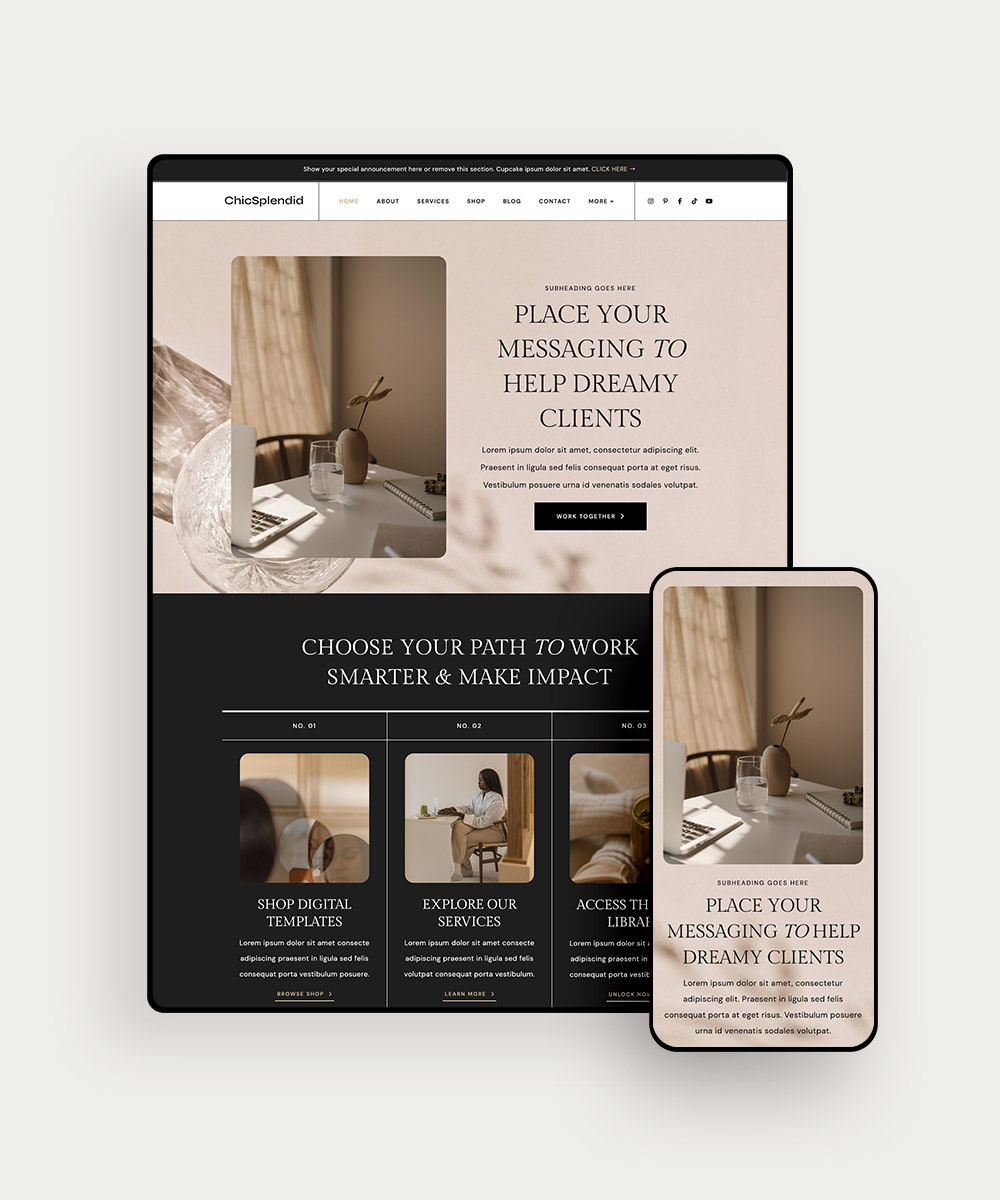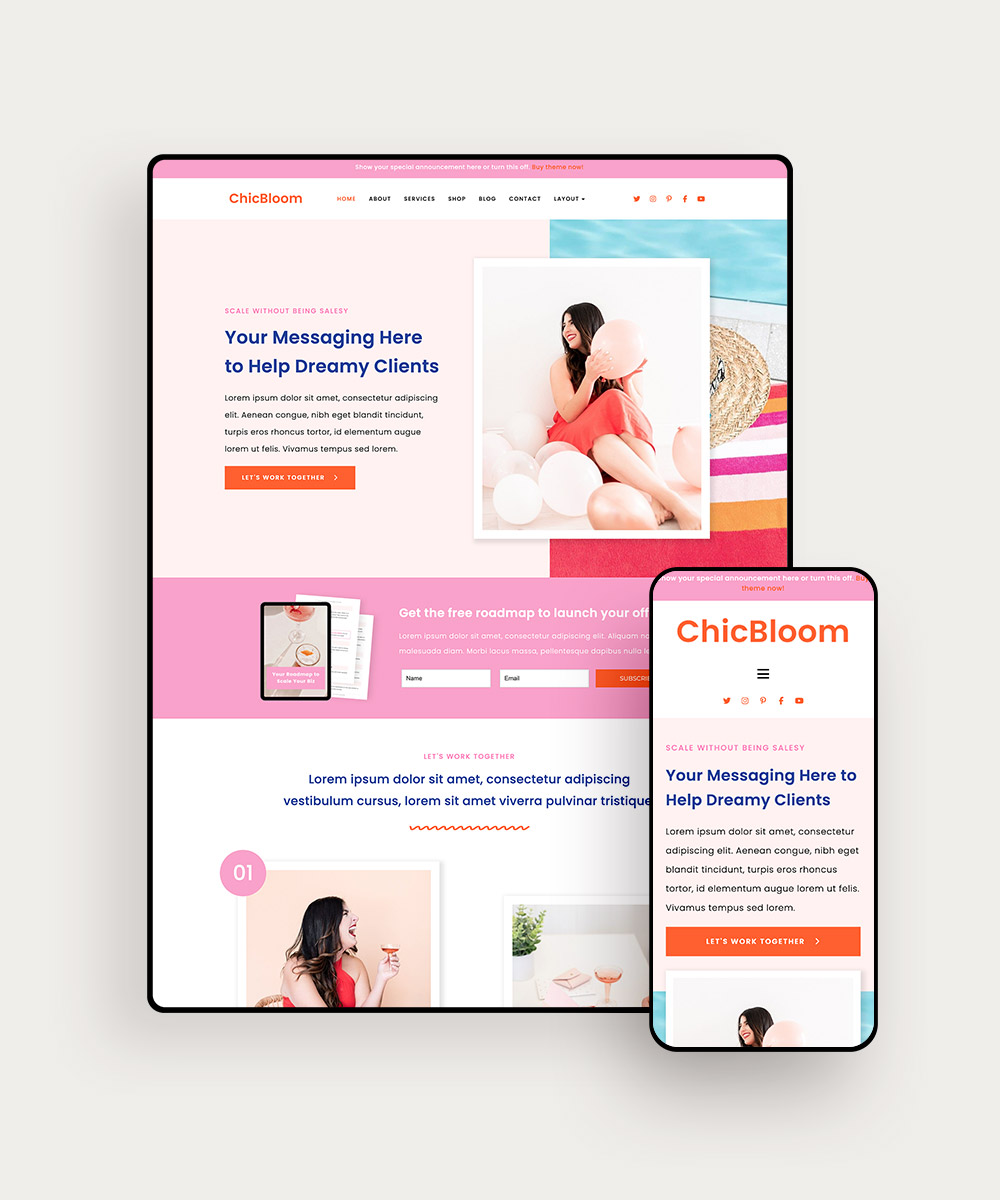
You finally found a website template you love. The layout is polished, the fonts look beautiful, and you can already picture your business in it.
Then comes the part that often takes a little more time: replacing the demo photos.
If you haven’t had a professional brand photoshoot, you may find yourself scrolling through your phone looking for photos you can use. Or you might start searching stock photo websites, downloading a few to test in your template, only to realize they do not quite fit.
The challenge is not finding a pretty photo.
It is finding stock photos for your website that fit your brand, work with your template, and make sense for the people you want to attract.
The right images can make a website template feel much more personal to your business. They can also help your pages feel polished and intentional, even if you are working with stock photography instead of custom brand photos.
And you do not need to spend hours downloading images just to see what works.
In this post, we’ll show you how to choose stock photos for your website, including how to search by color and category, choose images that work with your layout, and build a collection that looks cohesive across your site.
PIN THIS POST FOR LATER!


1. Start With Your Ideal Client and the Life They Want
Before you start searching for images, think about the person you want visiting your website.
Your photos should make sense for your ideal clients and help them picture themselves working with you.
Think about the kind of life they want, what they want help with, and how they want their day-to-day life to feel afterward.
For example, a business coach might use images of a woman confidently working from a beautiful home office, planning a launch, or enjoying more flexibility in her day.
A wellness professional might choose peaceful spaces, movement, self-care, or relaxed lifestyle images.
A wedding professional could use romantic details, beautiful tablescapes, flowers, and celebrations that reflect the kind of event her clients want to create.
You do not have to show your service literally in every image. A photo can communicate the experience or result your client wants instead.
This can also help you come up with better search terms.
Instead of searching for “businesswoman,” try something more specific, such as:
- “female entrepreneur working from home”
- “creative business owner laptop”
- “female coach workspace”
- “woman planning business goals”
You can also search for activities, objects, and environments that your ideal client would recognize.
The more specific your search, the easier it becomes to find photos that support your content instead of simply filling an empty image space.
Related post: 8 Business Coach Website Examples Built With Elementor
2. Start With the Colors Already in Your Brand
One of the easiest ways to make stock photos work with your website is to pay attention to color.
Before you start searching, look at your website’s existing color palette. Maybe you use warm neutrals, muted greens, black and white, or brighter colors.
Look for photos with colors that complement your palette and sit comfortably alongside the rest of your website.
For example, if your website uses a soft neutral palette, a collection of highly saturated red, orange, and blue photos may feel disconnected from the rest of the design.
You can search stock libraries by color, too. Try searches such as:
- Neutral stock photos
- Beige business stock photos
- Green lifestyle stock photos
- Black and white business photos
You can also choose mostly neutral images and let your brand colors come through in your backgrounds, buttons, fonts, and other design elements.
If you want a more curated place to search, Haute Stock offers stock photography featuring women across different industries, backgrounds, and styles, including diverse imagery for female entrepreneurs. It makes it easier to browse by visual direction, so you can spend less time sorting through unrelated images.
Start with one or two of your main brand colors. Look for photos that complement your palette, not photos that include every color you use.

3. Search by Category to Find Photos That Fit Your Business
Searching by category can save you a lot of time, especially when you already know what kind of images your website needs.
Think about the pages and sections you are filling.
A business coach might look for workspace, lifestyle, women entrepreneurs, planning, or technology.
A health coach might search wellness, food, movement, self-care, or nature.
A designer might need interiors, workspaces, textures, technology, or mockups.
A wedding professional might search for celebrations, florals, fashion, tablescapes, or details.
You can also search based on the type of image your template calls for. A hero section may need a wide lifestyle image, while a smaller service section might work better with a close-up detail or workspace photo.
Haute Stock is a useful option if you prefer browsing curated collections instead of searching a huge general stock library. It offers categories covering business, lifestyle, wellness, interiors, travel, celebrations, and other subjects you may need for your website.
Start with the category that matches the section you are working on, then narrow your search from there.
4. Pick Photos With the Same Overall Look
Once you find a photo you like, use it as a reference. Look at the brightness, colors, background, editing, and setting, then use those details to guide the rest of your search.
For example, a bright website with soft neutral colors may look disconnected if you add several dark, heavily edited photos. A warm, earthy website may also feel off if half of the images have a cool blue tone.
When you are browsing stock libraries, save a few images you like and look at them side by side before downloading more.
This makes differences in lighting, color, and editing much easier to spot.
You can also save several images from the same collection when you find one that works well. Curated collections are helpful because the photos have already been selected with a similar visual style in mind.

5. Choose Photos That Leave Room for Your Website Copy
A photo can look beautiful on its own and still be a poor choice for a particular section of your website.
Look at your template before downloading the image.
If your headline sits on the left side of a large photo, look for an image where the subject is toward the right, and there is simple, open space on the left.
If your text sits on the right, look for an image with open space on the right and the subject toward the left.
That open space gives your headline somewhere to sit without covering someone’s face or competing with a busy background.
This matters especially for hero sections because your headline is usually one of the first things visitors see.
Before choosing an image, check:
- Headline placement: Is there enough open space behind the text?
- Readability: Will the text be easy to read?
- Mobile cropping: Will the main subject still be visible?
- Image shape: Does the photo fit the shape of the space?
When replacing demo images in a website template, pay attention to the shape of the original image too. A wide image may work beautifully in a hero section but become awkward when squeezed into a tall image block.
Choose the photo based on the space you actually have, rather than trying to force a favorite image into the wrong layout.
Related post: The 7 Dos & Don’ts of DIYing Your Website Copy
6. Keep Your Images Visually Consistent
Once you have a group of images saved, look at them together before uploading them to your website. Putting them in one folder makes it easier to compare the lighting, colors, and editing at a glance.
You might have one beautiful photo with warm beige tones, another with cool blue lighting, and another with a very bright white background. Each image may work on its own, but the combination can make your website feel scattered.
Try to keep a similar visual direction across your main pages. Pay attention to:
- Lighting: bright and airy, soft and muted, or darker and moodier
- Color: warm, cool, neutral, or more colorful
- Editing: natural, polished, muted, or high contrast
- Setting: similar types of spaces, props, and environments
- People: images that make sense for the audience you want to attract
You can still use different types of images throughout your website. Keep a few visual details consistent so the photos feel like part of the same brand.
If one image looks noticeably darker, more saturated, or more heavily edited than everything else, it may be worth replacing it before you build the page around it.
Related post: Trending vs. Consistent Branding: Which Is More Important?


7. Use a Mix of Images Throughout Your Website
You do not need every section of your website to feature a photo of you.
If you are a service-based business owner without a large library of brand photography, stock photos can help round out your website and give it more visual variety.
A balanced website might include:
- Photos of you: Build connection and show your personality.
- Your workspace or tools: Give visitors more context about how you work.
- Process or behind-the-scenes images: Show parts of your work that are easier to demonstrate visually.
- People who resemble your ideal clients: Help visitors picture themselves in the experience you are offering.
- Lifestyle and detail photos: Support the experience or outcome you want to communicate.
Your own photos are especially useful on pages where people want to connect with you personally, such as your About page or homepage introduction.
Then use stock photography for the sections where a personal photo isn’t necessary.
This can also make customizing a website template much easier. You can choose an image based on what each section needs instead of trying to find one perfect photo of yourself for every image placeholder.
How to Know If a Stock Photo Will Work on Your Website
Before downloading a photo, check that it:
- Fits your audience: The person, setting, and lifestyle make sense for your ideal client.
- Works with your colors: The colors complement your website palette.
- Matches your other images: The lighting and overall style fit your existing photos.
- Fits your layout: The image works with the size and shape of the space in your template.
- Leaves room for text: There is enough open space if you plan to place copy over the image.
- Works on mobile: The main subject stays visible when the image is cropped.
FAQs About Stock Photos for Your Website
Compress your photos before uploading them. We use Compressor.io to reduce file sizes quickly.
Large image files can slow down your website. Compress your photos and use an appropriately sized version instead of uploading the original file.
Pinterest is useful for finding inspiration, but an image appearing there does not mean you have permission to use it. For photos you plan to use on your website, it is better to get them from a stock photo membership such as Haute Stock, where images come with licensing for business use.
Check the stock site’s license. Paid stock sites often do not require credit, while some free sites may request attribution or have different usage rules.
Yes, but check the license before using any image for your business. Free does not always mean you can use an image without restrictions.
Final Thoughts: Make Your Stock Photos Work With Your Template
Once you have your photos, you can start replacing the demo images and see your website come together.
Bluchic WordPress Themes give you professionally designed layouts for your homepage, About page, services, blog, and other key pages, so you can focus on adding your branding, content, and carefully chosen images.
Instead of spending hours figuring out where everything should go, you can start with a polished layout and make it your own with the photos, colors, fonts, and content that fit your business.
Explore the Bluchic WordPress Theme Shop and find a template you can customize with photos that fit your brand and business.